ChartIQ charts on Kite web just got an upgrade with custom timeframe charts, new indicators, backtesting from charts, and much more.

Here’s how you can switch to the new version of ChartIQ: https://t.co/rhXrQ330G7

A thread on all the new features 👇

Custom timeframe charts

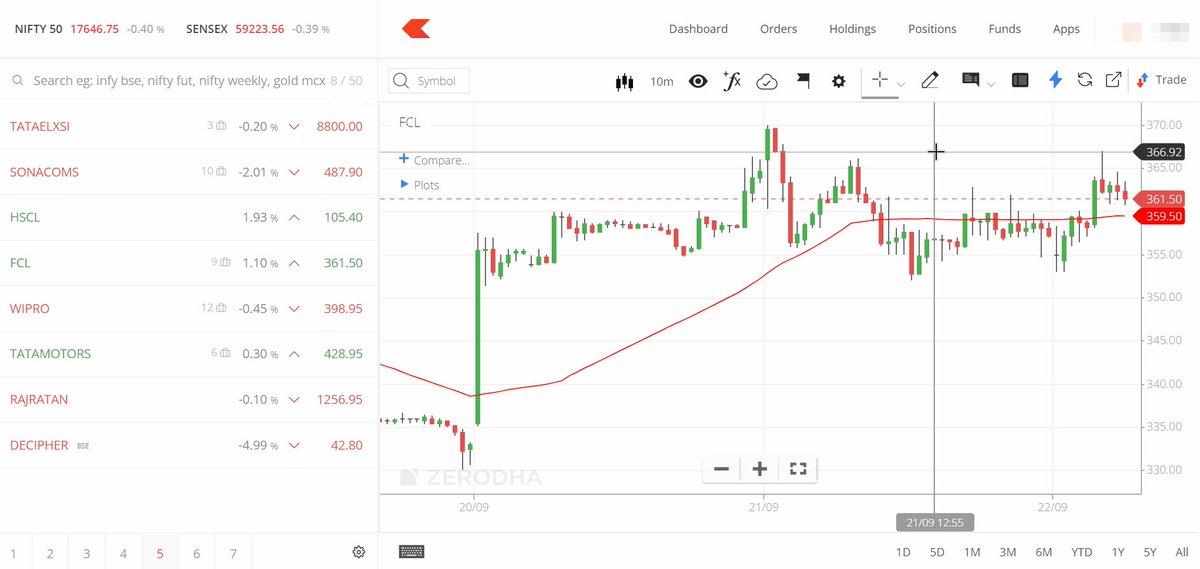
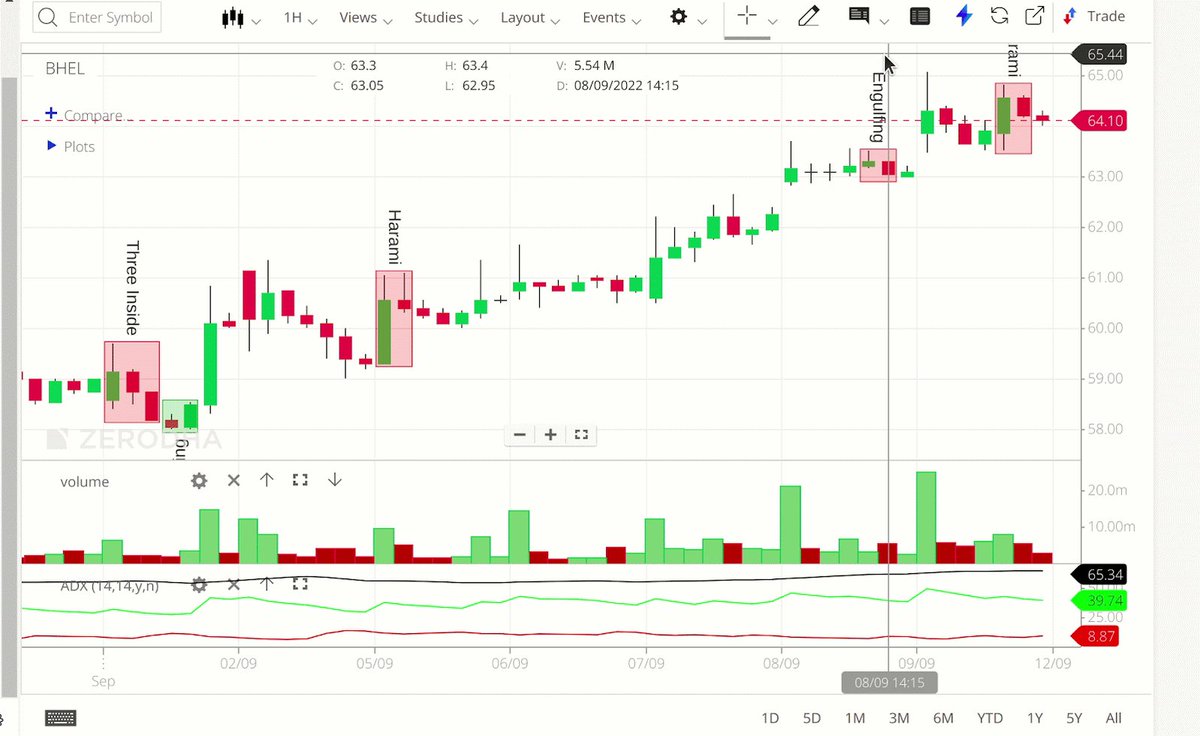
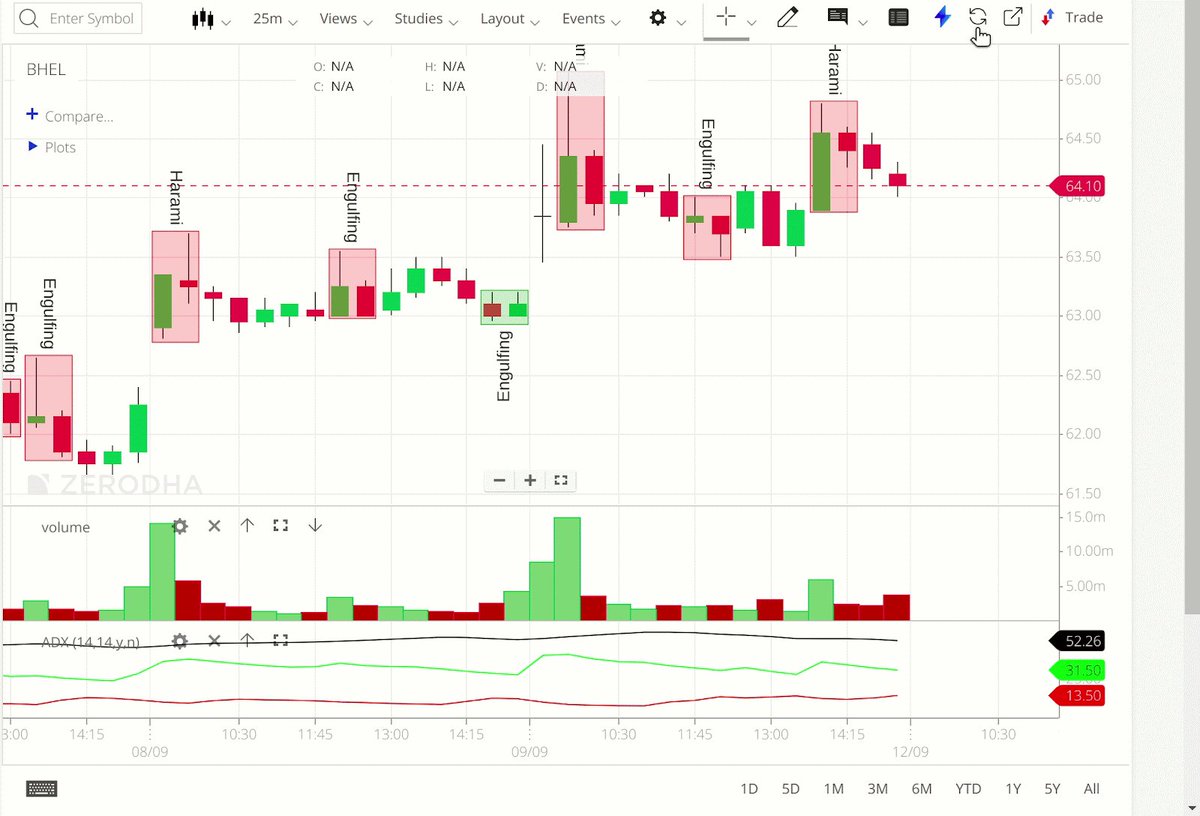
Charts with timeframes of 75 and 125 minutes were amongst the most popular feature requests. With the custom timeframe feature, you can now not only access 75 and 125-minute charts, but you can also do so for any timeframe of your choice.
Download historical data in CSV

You can now download chart data to Excel to run your own analyses.
Backtesting from charts

@StreakTech allows you to create and backtest trading strategies without any coding. Streak is now integrated with Kite charts. Clicking on the Streak icon will start a backtest of widely used strategies with the indicators applied on the charts.
Shortcut keys for various functions

Chart shortcuts are now available on ChartIQ 8. Shortcuts can be used to quickly perform actions such as invoking the order window, accessing drawing tools, zooming, etc.
New indicators and drawings.

New indicators: Projected Aggregate Volume, Projected Volume at time, Volatility Projection Cone, Moving Average Cross, Guppy Multiple Moving Average, Enhanced anchored VWAP.

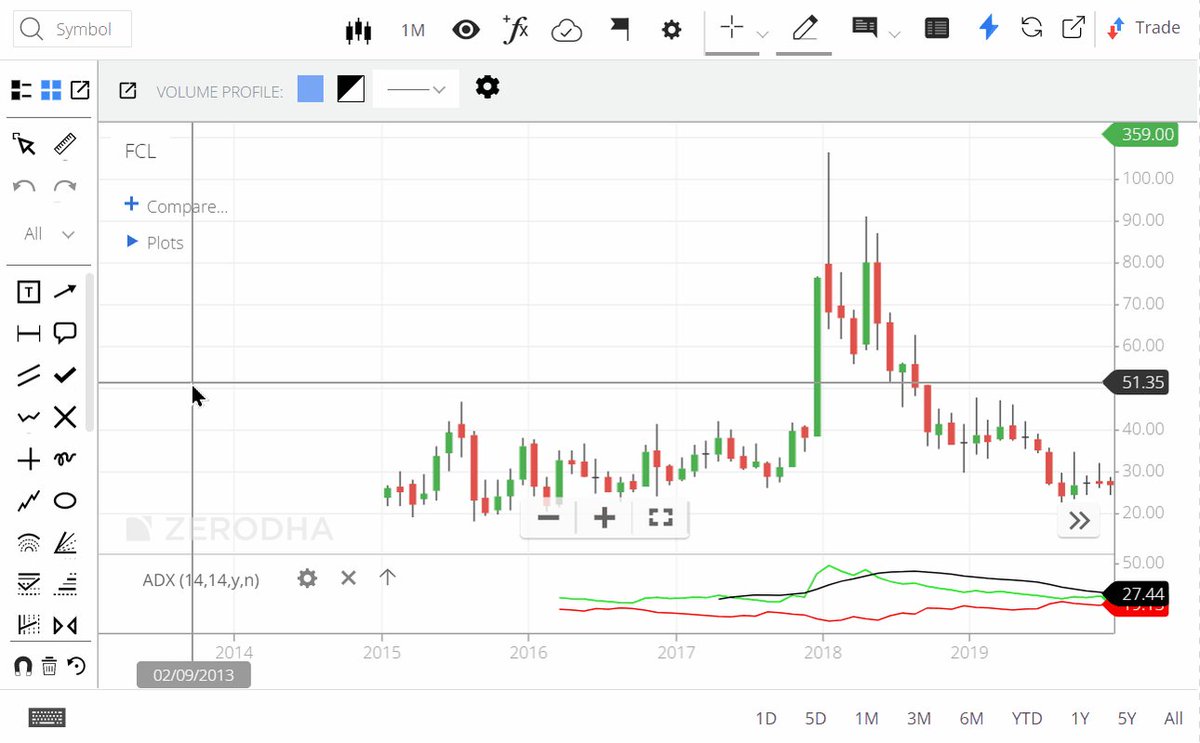
New drawings: Elliott wave, Magnet, Volume Profile by date range.
Pin most used drawings

You can mark all your frequently used drawing tools as favourites and access them quickly at the top of the drawing tools menu.
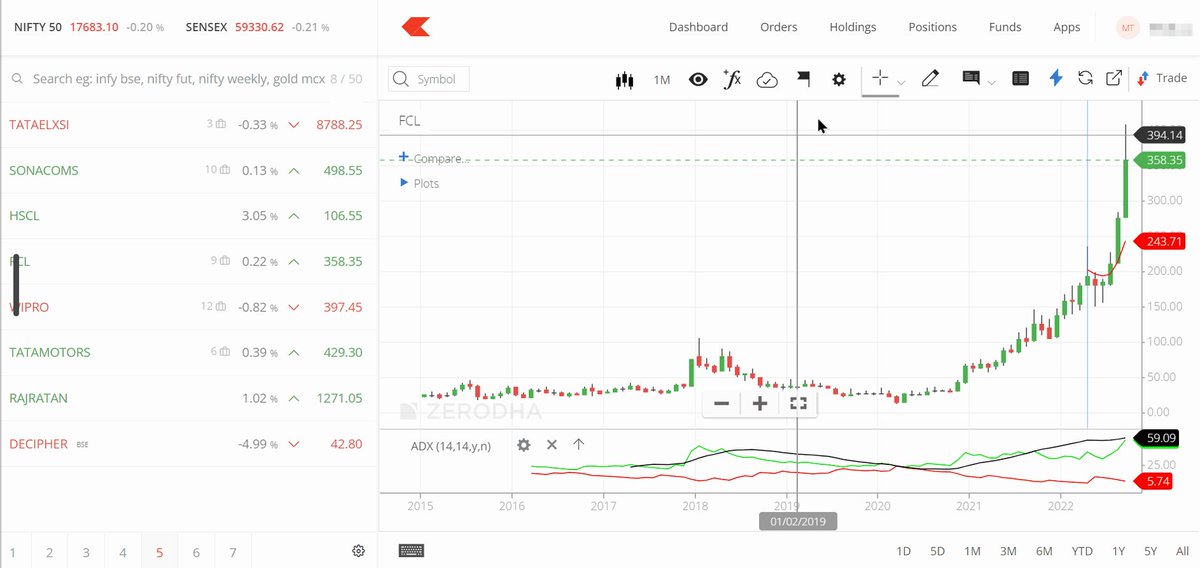
Historical indicator values

Using the Tool Tip feature you can now see historical indicators values along with open, high, low and close values (OHLC) in the info box.
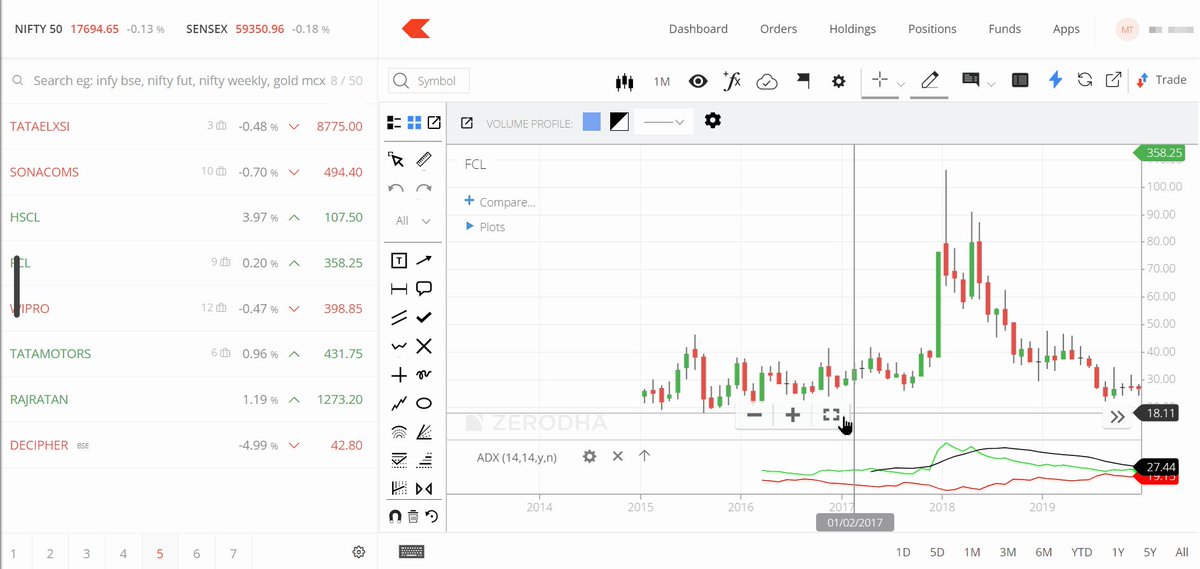
Charts can now be viewed in full-screen mode for a larger view.
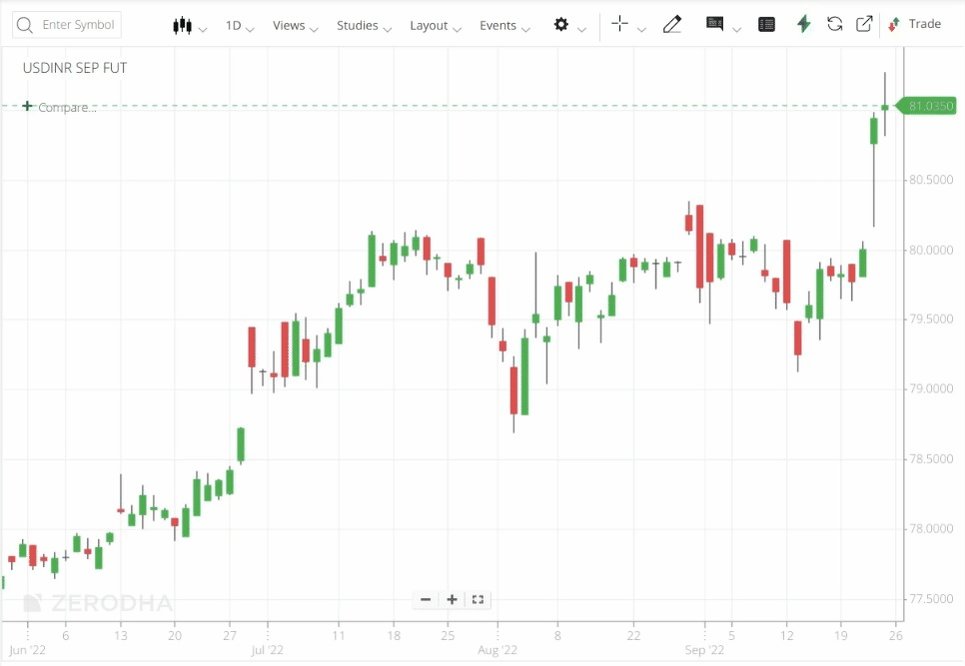
Continuous chart data for currency contracts is now available.
The new version of ChartIQ is currently available only on Kite web and will be available on Kite app soon.

If you have any feedback, let us know on @TradingQnA 👇
https://t.co/RyXUVdOYe4

More from Trading

You May Also Like

Trading view scanner process -

1 - open trading view in your browser and select stock scanner in left corner down side .

2 - touch the percentage% gain change ( and u can see higest gainer of today)


3. Then, start with 6% gainer to 20% gainer and look charts of everyone in daily Timeframe . (For fno selection u can choose 1% to 4% )

4. Then manually select the stocks which are going to give all time high BO or 52 high BO or already given.

5. U can also select those stocks which are going to give range breakout or already given range BO

6 . If in 15 min chart📊 any stock sustaing near BO zone or after BO then select it on your watchlist

7 . Now next day if any stock show momentum u can take trade in it with RM

This looks very easy & simple but,

U will amazed to see it's result if you follow proper risk management.

I did 4x my capital by trading in only momentum stocks.

I will keep sharing such learning thread 🧵 for you 🙏💞🙏

Keep learning / keep sharing 🙏
@AdityaTodmal