A thread on teaching live lessons using @MicrosoftTeams Meet Now function where students follow their normal timetable except online - will go into more detail on every point in a blog post later. Have used Teams for live teaching have supported over 100 live lessons since March
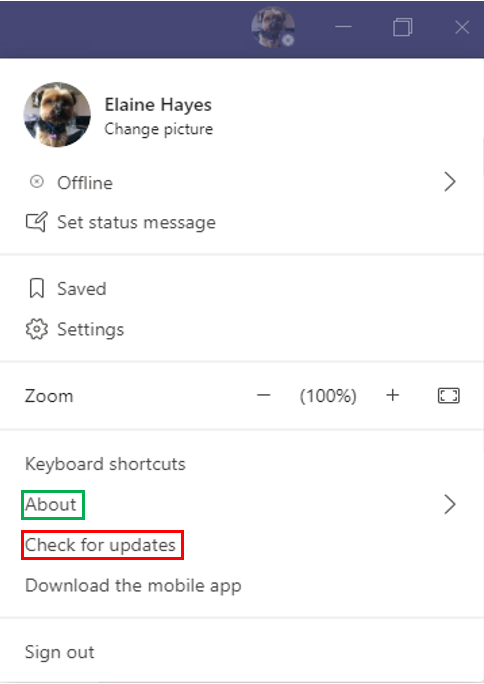
1. If you are using the desktop app, check you have the latest version of Teams so that you should have Breakout rooms enabled. Check by clicking your profile picture, then About - I have version 1.3.00.28779. If you have 1.2..., click on check for updates to get the latest
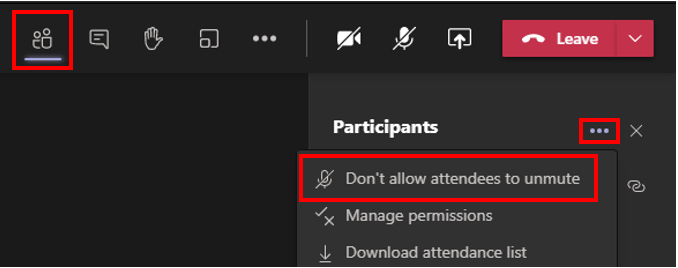
2. Set your entry routine. I get my students to enter with their microphone muted - you can also not allow attendees to unmute by opening the participants list, clicking the ellipsis and selecting that option.
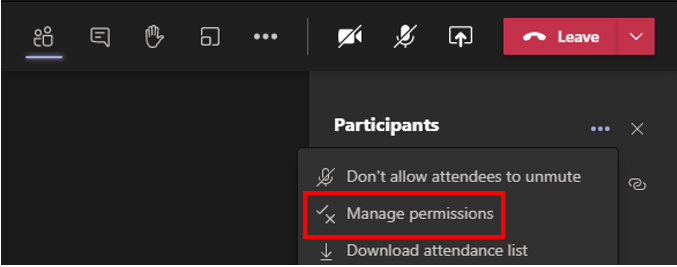
3. Make sure students arrive as attendees - some organisations have this set up to automatically happen that only meeting organizer is the presenter and others are attendees. Can change this in the manage permissions menu to only me if not already set (opens in a web browser).
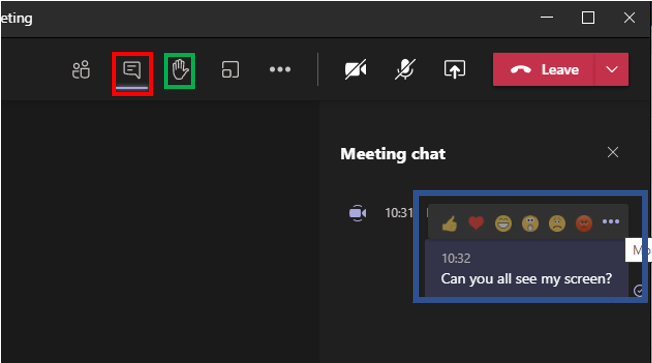
4. Classroom routine and expectations - first lesson I share my screen and show the students the raise hand function for when they want to ask questions, how to access the chat function and how to react to questions as opposed to typing answers
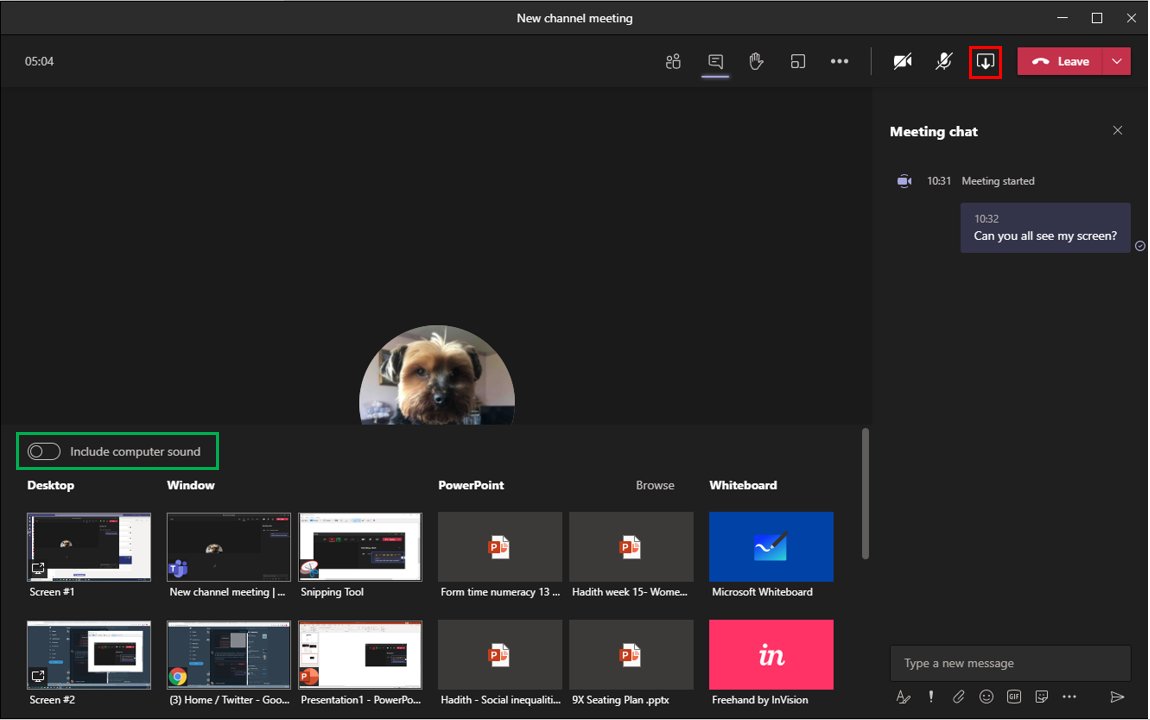
5. Sharing content #1: if you share your desktop you cannot see the chat, so a second screen or device is useful. Sharing a window just shares that app to the students and you can see the chat. If it includes sound, make sure to click include computer audio before sharing
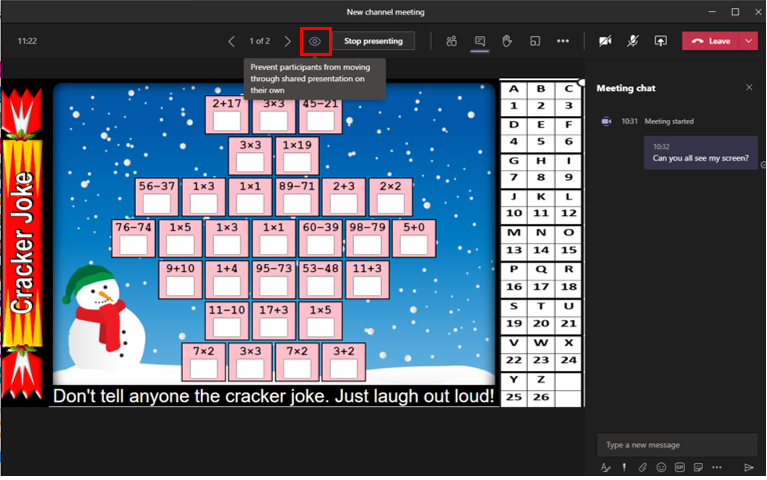
6. Sharing content #2: you can upload your PowerPoint to OneDrive before your lesson. This allows you and your students to still see the chat. Make sure to change the setting at the top (eye icon) which stops students from jumping ahead in the presentation
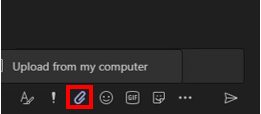
7. Sharing content #3: you can upload any accompanying resources into the meeting chat. This uploads into the Teams Files and it editable by everyone (unless PDF). If you don't want to be be able to edit, upload the file into the Class Material folder & share link in chat
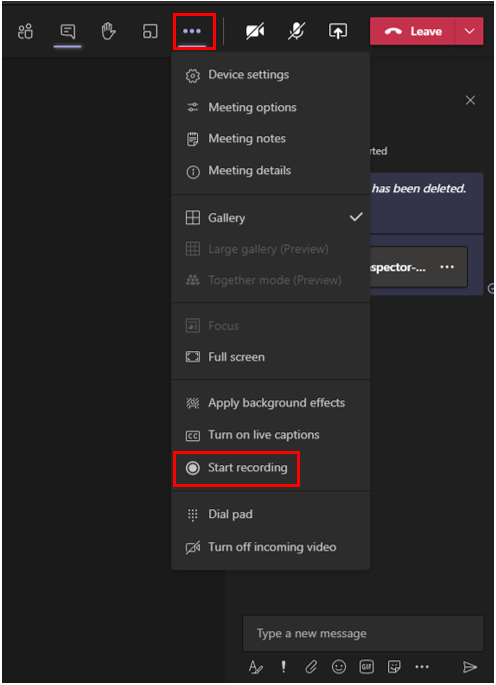
8: Record function: I have the instructional part at the start of my lesson and I record that keeping it under 7-8 minutes - drops into the chat during the lesson so students can refer back to it straight away. Click the ellipsis to access the more actions menu shown
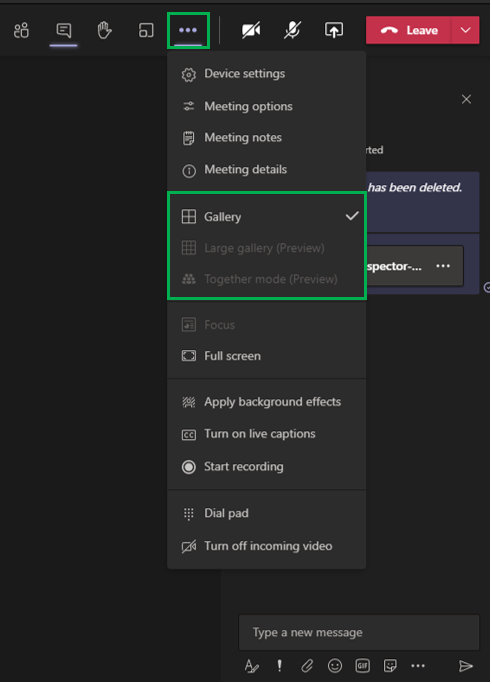
9. Different views. You can see up 9 participants with cameras on in gallery view, up to 49 participants in large gallery and together mode sits people into a large theater. Change these views in the more actions menu, click the ellipsis (three dots) to access
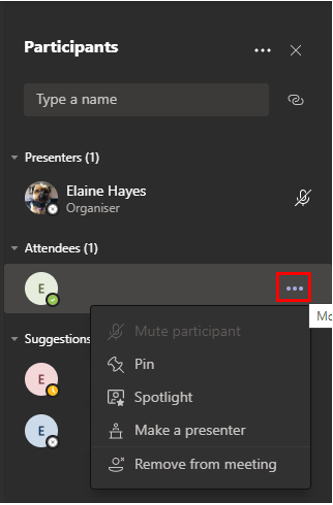
10. Participant menu #1- hover to the right of any participant (over the microphone symbol) to bring up an ellipsis, click on it. Spotlight pins that attendees video for everyone to see, if you have multiple teachers on a lesson you can change them to be presenters.
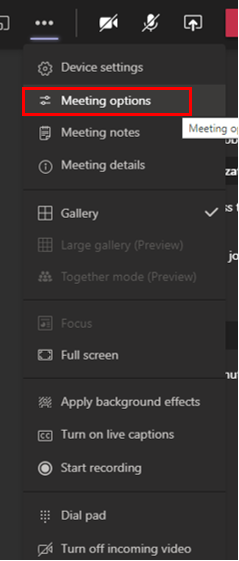
11. Participant menu #2 - if you need to remove someone, change permissions (either 1. more actions menu, meeting actions or 2. participants list, manage permissions). Change the bypass lobby function to only me so that they can't just join back, they have to be left in by you
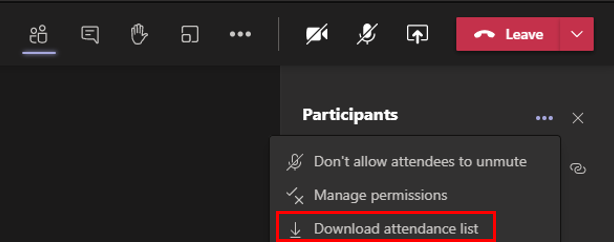
12.Participant menu #3 - download the attendance list before you end the meeting. This will be available in the Insights app, but can take up to 24 hours to appear
13. Breakout room: the icon for Breakout Rooms is the two square shown. Read more here https://t.co/qmyw3Xip8q
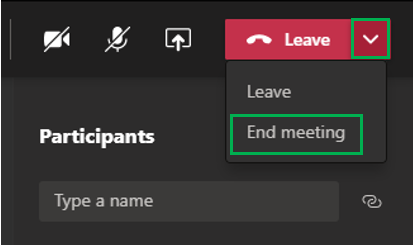
14. Ending the meeting. Click the down arrow to find the option for ending a meeting. If it is not there, open the more actions menu (ellipsis) and the end meting action is there. Ending meeting ends for all, leave means you have left students unattended on their own.
I've all my Teams notes here -> https://t.co/vO0n4h0IZL

My two blogs on synchronous and asynchronoues approaches are here -> https://t.co/FdBZgUKeHX

Any questions, fire away!
@threadreaderapp please unroll my thread

More from Internet

The Internet and mobile phones have taken over our lives. But it comes with increasing security concerns. Website data breaches, phishing attacks, and other online scams are commonplace. Here's a thread for regular people on how to increase your security online.
#StaySafeOnline

#1
Go to your Google account settings. Revoke permissions from all the apps you don't use:
https://t.co/cMGgSgtRTI

Also check if any app has access to your contacts or - gasp! - your entire email. Strongly reconsider both, especially access to your email.

Giving access to your contacts lets companies spam those people.

Giving access to your email - email organising apps, for instance - renders your online security meaningless. Password resets are often done with email, and if an external entity can access that, game over!

#2
Go to your Twitter account settings and revoke permissions from all the apps you don't use or trust:
https://t.co/lXxCgdnaXH

Online quizzes and such sites often ask for permission to post tweets for you, read your tweets, and even your DMs!.

People click "OK" without reading the fine print.

But imagine the security and privacy risk with having some unknown entity be able to post tweets and read your private DMs just to post the results of what Game of Thrones character you are.

You May Also Like

And here they are...

THE WINNERS OF THE 24 HOUR STARTUP CHALLENGE

Remember, this money is just fun. If you launched a product (or even attempted a launch) - you did something worth MUCH more than $1,000.

#24hrstartup

The winners 👇

#10

Lattes For Change - Skip a latte and save a life.

https://t.co/M75RAirZzs

@frantzfries built a platform where you can see how skipping your morning latte could do for the world.

A great product for a great cause.

Congrats Chris on winning $250!


#9

Instaland - Create amazing landing pages for your followers.

https://t.co/5KkveJTAsy

A team project! @bpmct and @BaileyPumfleet built a tool for social media influencers to create simple "swipe up" landing pages for followers.

Really impressive for 24 hours. Congrats!


#8

SayHenlo - Chat without distractions

https://t.co/og0B7gmkW6

Built by @DaltonEdwards, it's a platform for combatting conversation overload. This product was also coded exclusively from an iPad 😲

Dalton is a beast. I'm so excited he placed in the top 10.


#7

CoderStory - Learn to code from developers across the globe!

https://t.co/86Ay6nF4AY

Built by @jesswallaceuk, the project is focused on highlighting the experience of developers and people learning to code.

I wish this existed when I learned to code! Congrats on $250!!