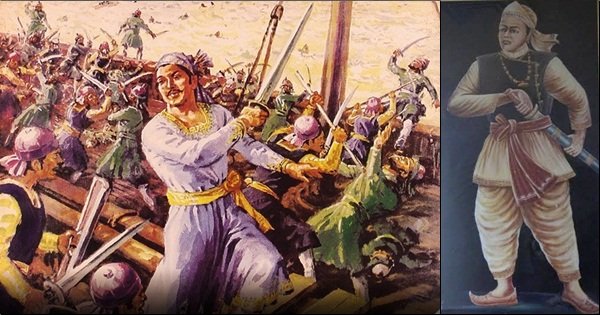
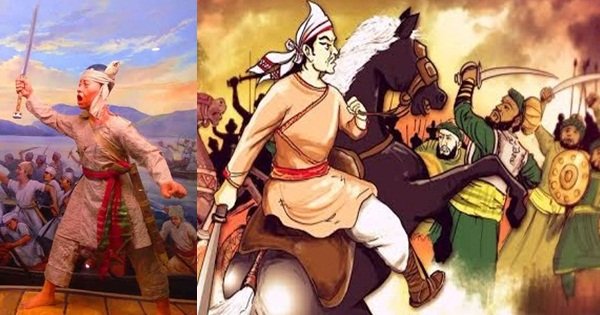
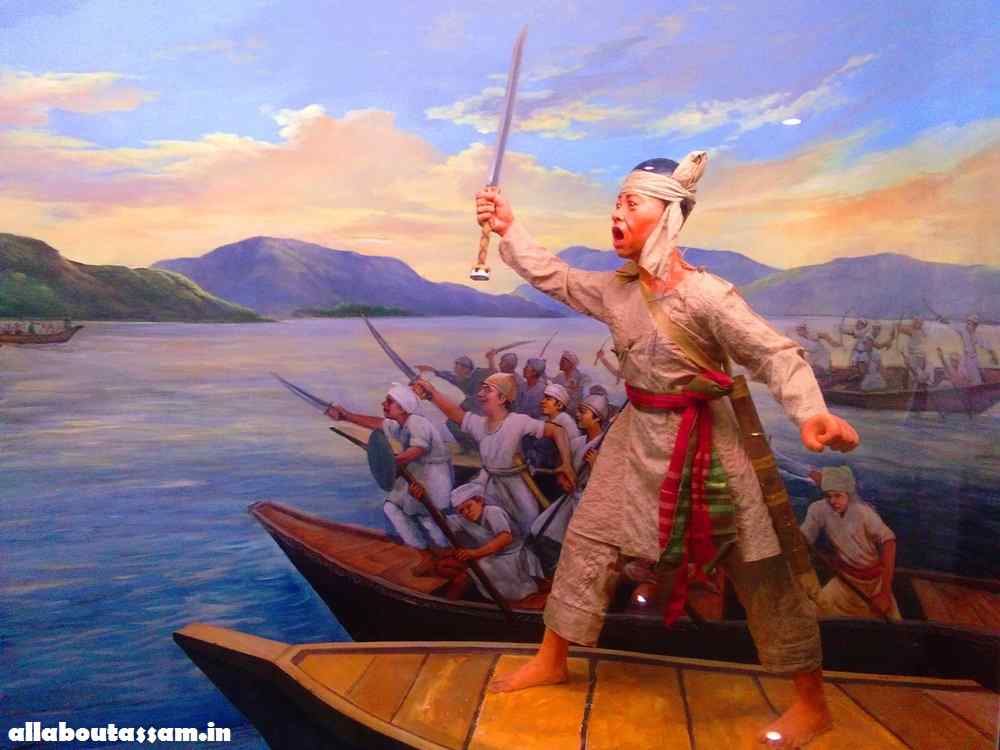
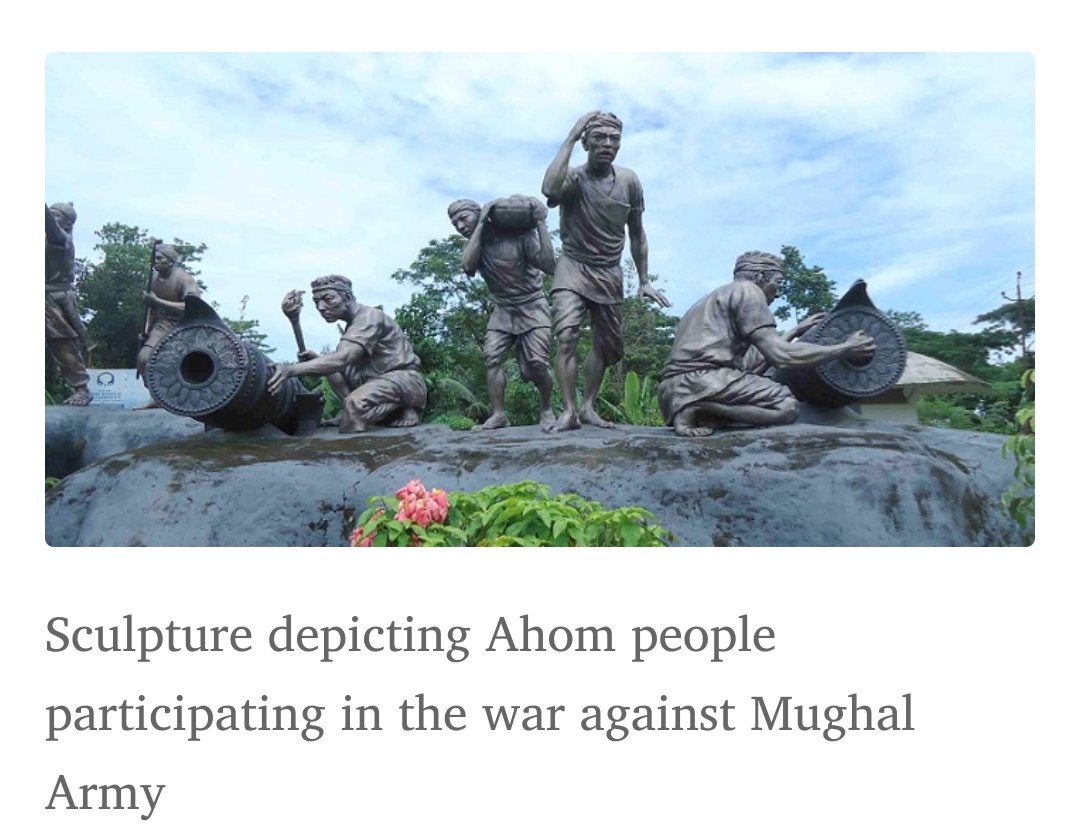
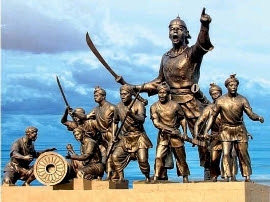
LACHIT BORPHUKAN : AN UNSUNG WARRIOR OF THE AHOM KINGDOM & THE GREAT BATTLE OF SARAIGHAT
Originally named as Lachit Deca, Lachit Borphukan, the fierce and invincible Ahom Commander, was born during the early 17th century at Betioni in the Golaghat district of modern Assam.
His father, Momai Tamuli Borbarua was the ‘Governor’ of the kingdom and also ‘Commander-in-Chief’ of Ahom army under King Pratap Singha during his reign starting from 1603 to 1639. Lachit received military training from an early age and joined the Ahom King Jayadhvaj Singha...
...(1648-1663) as a scarf-bearer. The post ‘scarf-bearer’ or ‘Soladhara Barua’ is considered as a part of the incumbent king’s personal staff. Owing to his military training Lechit was appointed "Ghora Barua", Supdt. of the Royal horses. When Chakradhwaj Singha became king..
..of Ahom dynasty in 1663,he appointed him Suptd. of The Royal Guards &finally he was appointed as Borphukan by the king.Then onwards,he was known as Lachit Borphukan.Borphukan used to be top councillor in Ahom Kingdom. This position was embedded with executive & judicial powers.
Assam was facing incessant Islamic invasion since Jan1662, when Mughal General Mir Jumla II attacked Ahom capital Gargaon. He never defeated Ahom king Jayadhwaja Singha as king retreated to hill &continued Guerrilla warfare.Prolonged fight &prospect of stalemate disturbed Jumla.