Hot Corners:
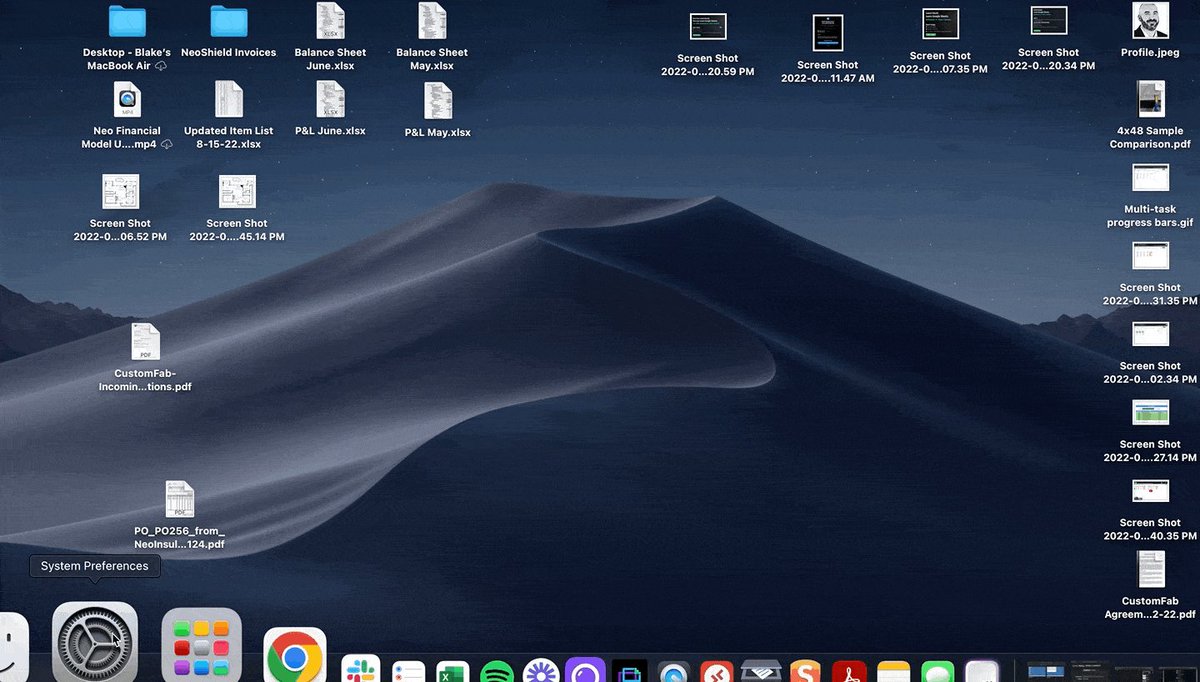
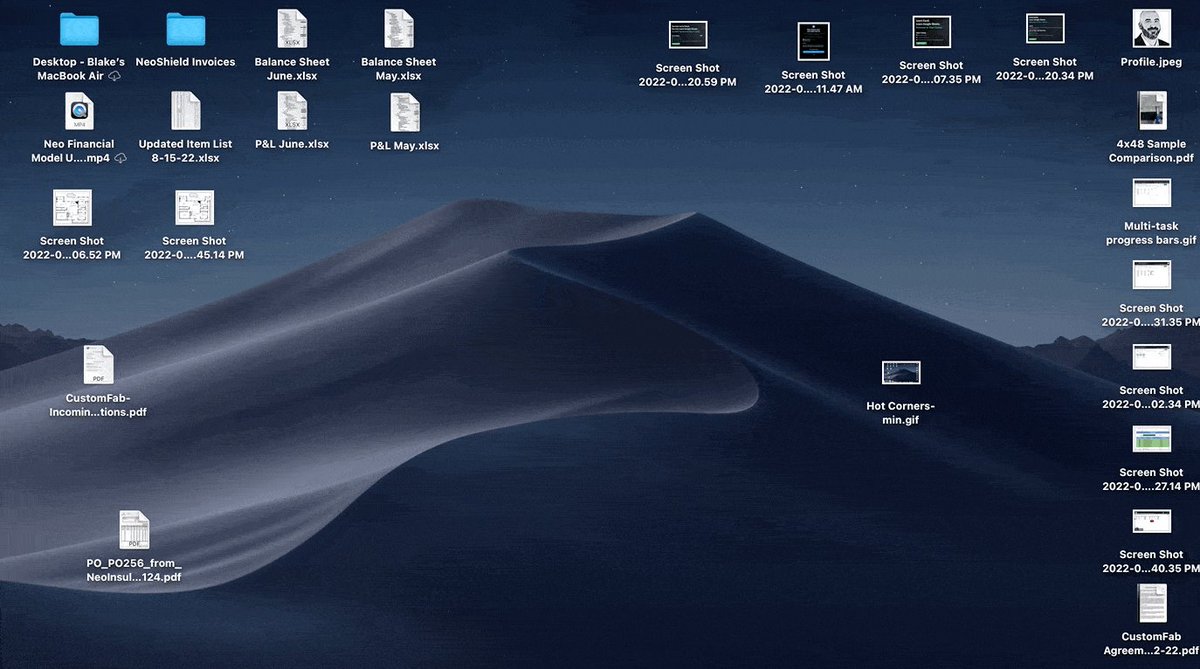
Launch various actions within your computer simply by moving your mouse to one corner of the screen or another.
• System Preferences
• Mission Control
• Hot Corners
• Select the action to launch
Specific Screenshots:
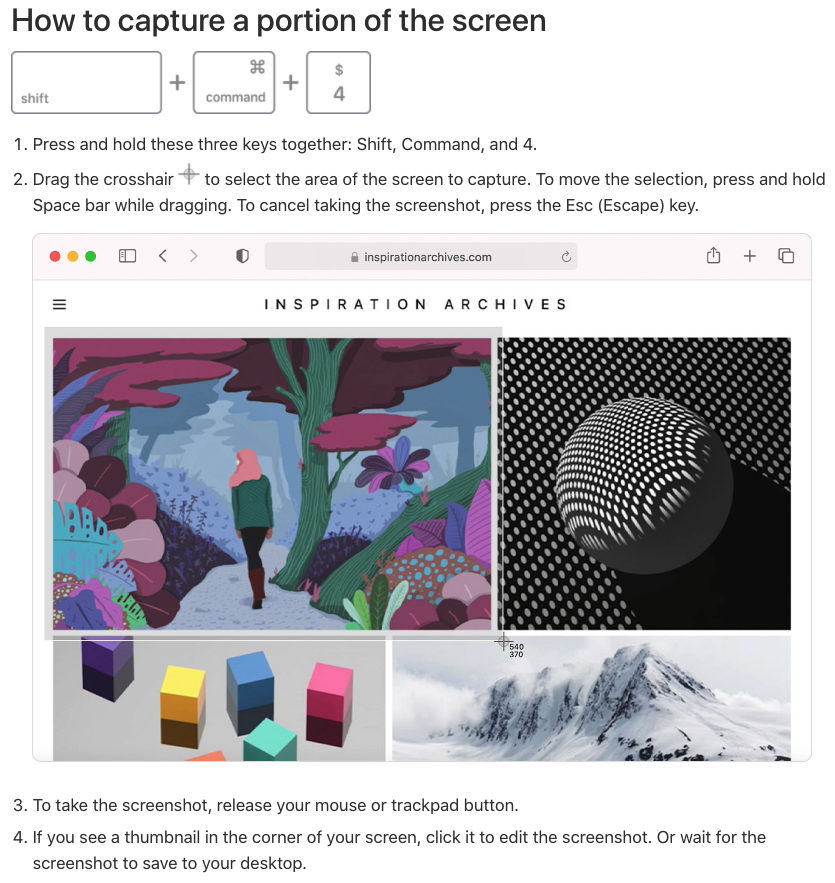
SHIFT+CMD+3 will capture your entire screen.
Did you know you can also narrow your capture to a specific portion?
It's easy, & now that I know it exists, I use it every day.
A simple SHIFT+CMD+4 and you're on your way.
Digital Signatures:
Have a PDF you need to sign?
Let's skip all the printing, physical signing, scanning, etc.
Using the "preview" app you can easily create a digital signature.
All you need is a pen, a white piece of paper, & your Mac's camera.
https://t.co/3ACdKofm0I
File Stacks:
I'm a bit OCD when it comes to my desktop.
I like to keep things very organized and can't stand to have a bunch of different files scattered across the screen.
• Right Click
• Use Stacks
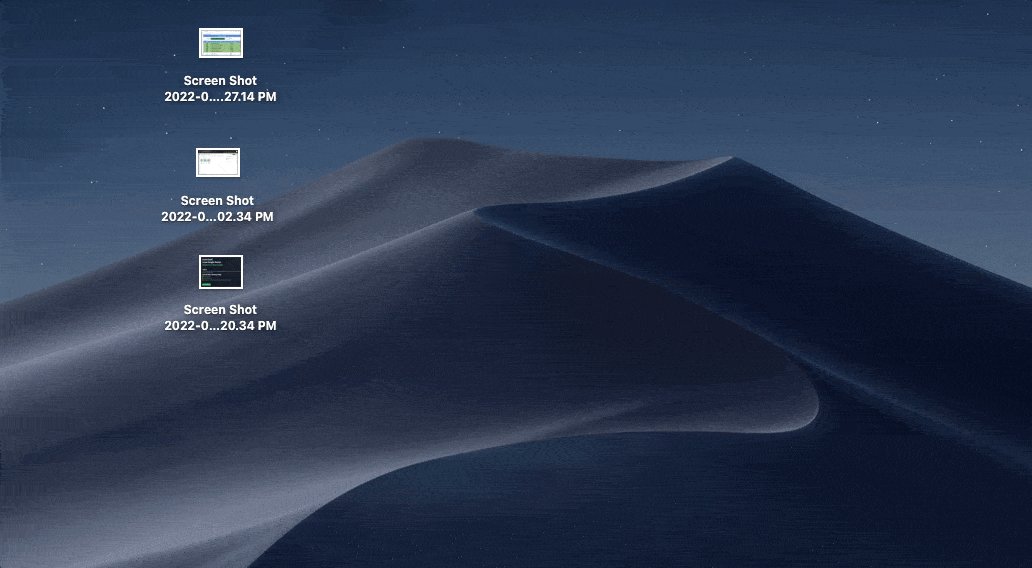
• Files are now "stacked" by type
Click a group to see the files within.
Annotate PDF's
While the preview app doesn't allow for text editing, it does provide some other pretty cool features.
By selecting the "markup" toolbar, you can unlock multiple collaborative options:
•Add notes
•Suggest changes
•Sketch, draw, & share ideas.
Here's how:
Keyboard Shortcuts:
I was sitting in my office recently & noticed one of my coworkers seemingly flying through tasks.
Without ever using his mouse.
I thought, "man, I've got to learn keyboard shortcuts."
With this in mind, here are the basics to get us started.
Custom shortcuts:
Speaking of keyboard shortcuts, did you know you can make one for literally anything?
Go to:
System Preferences->Keyboard
->App Shortcuts->Click the +
Have a menu option you use all the time, but a shortcut doesn't exist?
No worries. Create your own!
Create PDFs from images:
Let's say you have multiple images you'd like to share but the files are too large.
Converting them to a PDF is super simple.
Just Command +select all files
Right-click -> Quick Actions
Create PDF
Control Someone Else's Screen:
Type Command + Spacebar to open spotlight search.
Once inside, type "screen sharing" in the search box and select the option.
Type in their Apple ID and they'll receive a prompt to let you control their screen, straight from your own computer!
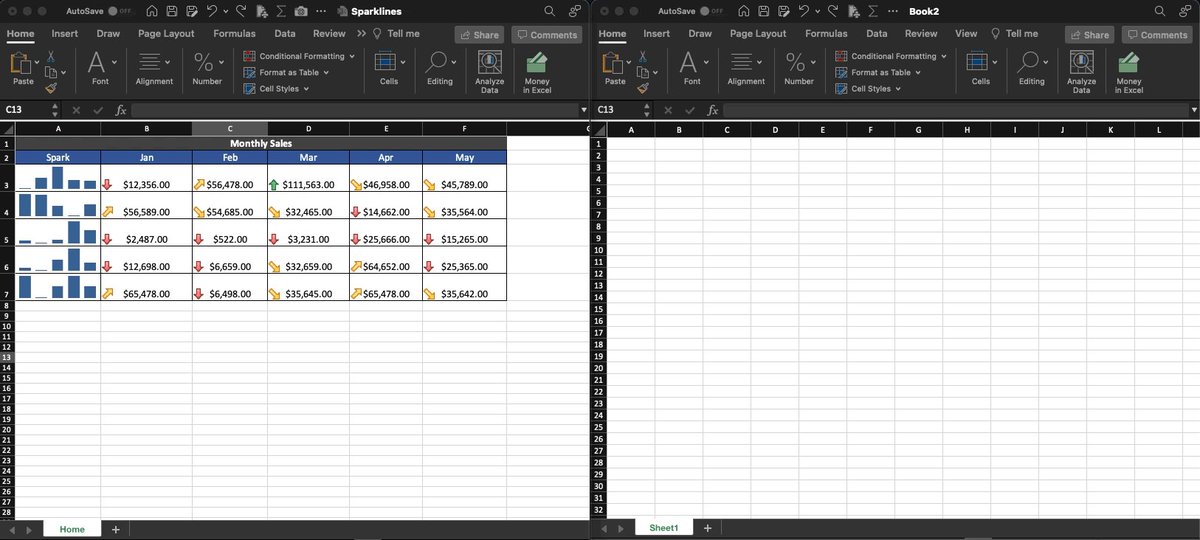
Split View:
If you're like me, you can't have enough screen real estate.
Here's how to 2X your viewable area:
Hover your pointer over the full-screen button 🟢 in the upper-left corner.
->Tile left or right
->Click a window on the other side
BOOM!
Two apps, one screen
If you learned something new, follow me
@blakeaburge for weekly threads on productivity and software tips.
You'll probably like my newsletter as well:
NERD ALERT
• 3 Tech Tips
• Every Sunday
• 5 Minutes or Less
Why not give it a try? It's free.
https://t.co/8gpnSlBhyx