*** THREAD ***

Three really useful Google Chrome extensions for Google Classroom.

1️⃣

Mote: voice notes and feedback.

This is an efficient tool for recording and posting verbal feedback. Mote is fully integrated into Google Docs, Slides, Sheets and Google Classroom. This makes it incredibly accessible and easy to use.
The mote icon (purple) appears in the 'private comments' box when you view submissions in GC. You simply click on the icon and record. With voice recording one click away, it is easy and quick to use. You only get 30 seconds but this encourages succinct, precise feedback.
It's great that you can view the document you are providing feedback on whilst recording. This helps to ensure specificity. For example, you can highlight specific examples from a student's work and then talk through them. This sort of thing prevents me from waffling, anyway.
There are other benefits too:
- Verbal feedback can be transcribed, with the option to review and change before posting.
- Mote supports transcription in more than 20 languages.
2️⃣

Google Dictionary.

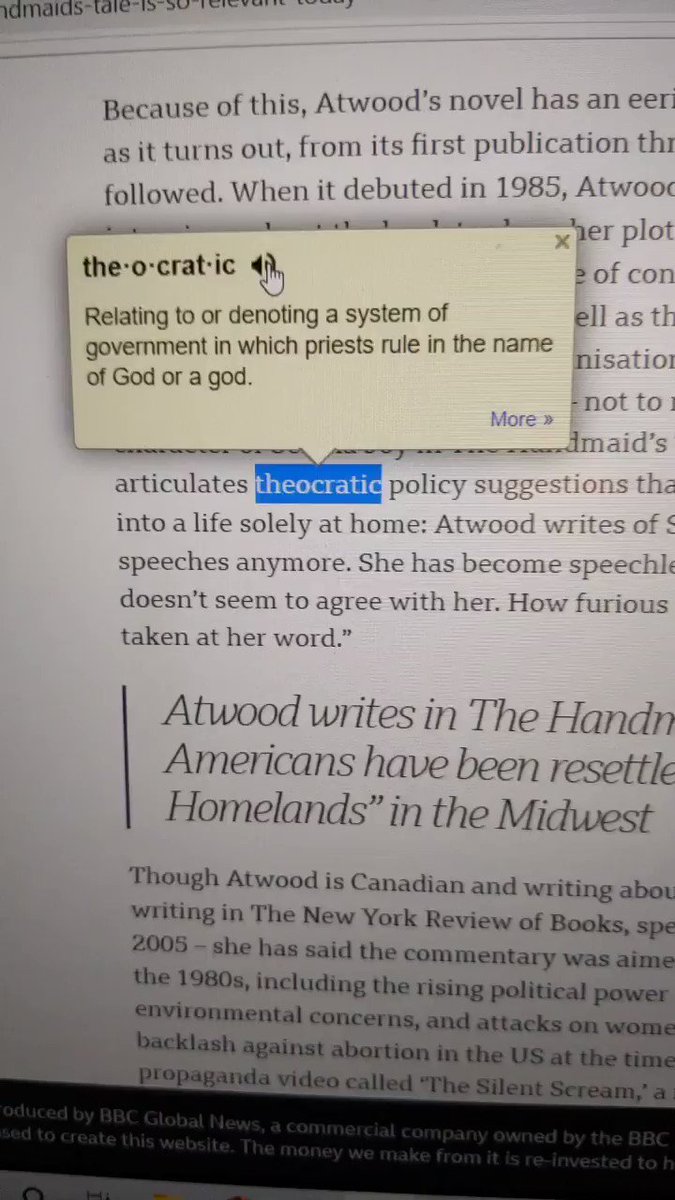
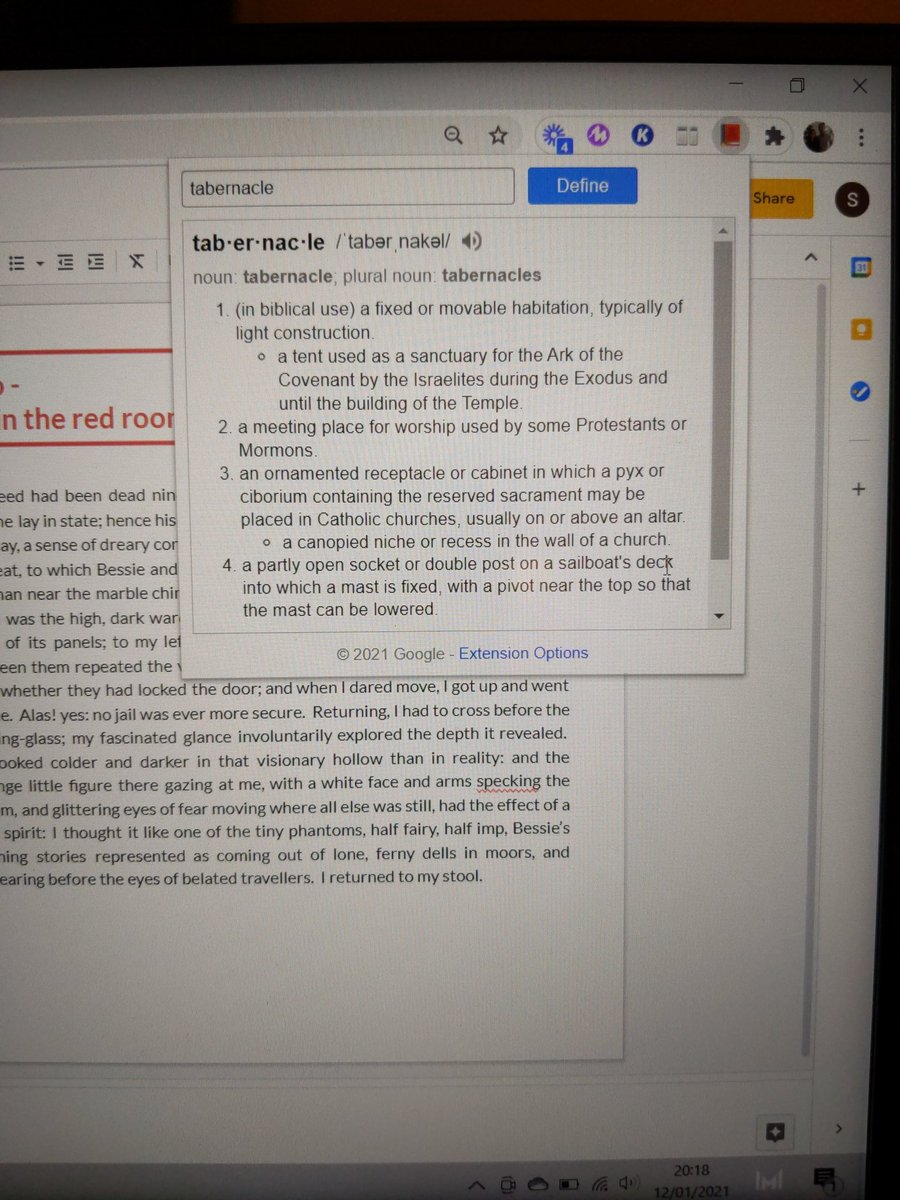
This is great. A real game changer for students, I think. Once added as an extension, students can simply double click on any word they do not understand when using Chrome's browser and a definition will instantly pop up.
This simple add-on helps to ensure students' attention is maintained, which is particularly important when they are contending with many distractions online. Crucially, students do not need to open a separate tab. This eliminates 'task switching' which can decrease efficiency.
I really like that pupils can opt to hear the pronunciation of new or unfamiliar words, too. This is an added bonus.
If students encounter an unfamiliar word in a Google Slides/Doc that you have shared, they can still easily access the definition without straying from your material. They simply copy the word into a box that pops up when they click on the Google Dictionary icon on the task bar.
3️⃣

Kami

Kami is basically a PDF, document annotation and mark-up tool. It works pretty seamlessly with Google Drive. With a good range of mark up tools, it's great for accessing and annotating PDFs - this can be done live or in advance for asynchronous lessons.
You can click on the Kami icon on the task bar and instantly upload a PDF direct from Google Drive.
With Kami, I don't have to avoid using my PDF exemplar material, nor do I need to spend valuable time typing up responses for annotation. Once uploaded to Kami, I can begin using the wide range of annotation tools available.
One thing I really missed early on during remote teaching periods is collaborative annotation. With Kami, pupils can jointly annotate PDFs with ease. As Kami is fully integrated, sharing to Google Drive and then Google Classroom is simple.
Most exemplar material (for English anyway) is long. Kami enables me to chunk annotation tasks like I would if I were in the classroom. For example, I can predetermine the focus for annotation and direct students to focus on annotating specific parts of an exemplar.
Students can easily post replies to annotations. Likewise, teachers can reply to their students' ideas. This opportunity for dialogue makes it a truly collaborative tool, which I like. I find this ideal for smaller classes, to be honest - such as AS or A2 classes.
You don't even need to type annotations because you can just as easily - with one click - post voice notes.
Kami has lots of other features. For example students can just as easily collaborate on a blank sheet similar to Jamboard. I've only recently begun using Kami, though, so I'm still a novice.

#remotelearning
#GoogleClassroom
#edutwitter
#education

More from Internet

🚨 🦮 Seven ways to test for accessibility using only what is already in browser developer tools of Chromium browsers https://t.co/C7kdbigHGE

@MSEdgeDev @EdgeDevTools @ChromiumDev
#tools #accessibility #browsers
Also, a thread: 👇🏼


Issues pane, powered by @webhintio, listing accessibility issues with explanations why these are problems, links to more info and direct links to the tools where to fix the problem.
https://t.co/4K5RynHhbg


The inspect element overlay showing accessibility relevant information of the element, including contrast information, ARIA name, role and if it can be focused via keyboard.


Colour picker with contrast information offering colours that are AA/AAA compliant. You can also see compliant colours indicated by a line on the colour patch.
Note: the current algorithm fails to take font weight into consideration, that's why there will be a new one.


Vision deficit ("colour blindness") emulation. You can see what your product looks like for different visitors.
https://t.co/bxj1vySCAb
There are lots of problems with ad-tech:

* being spied on all the time means that the people of the 21st century are less able to be their authentic selves;

* any data that is collected and retained will eventually breach, creating untold harms;

1/


* data-collection enables for discriminatory business practices ("digital redlining");

* the huge, tangled hairball of adtech companies siphons lots (maybe even most) of the money that should go creators and media orgs; and

2/

* anti-adblock demands browsers and devices that thwart their owners' wishes, a capability that can be exploited for even more nefarious purposes;

That's all terrible, but it's also IRONIC, since it appears that, in addition to everything else, ad-tech is a fraud, a bezzle.

3/

Bezzle was John Kenneth Galbraith's term for "the magic interval when a confidence trickster knows he has the money he has appropriated but the victim does not yet understand that he has lost it." That is, a rotten log that has yet to be turned over.

4/

Bezzles unwind slowly, then all at once. We've had some important peeks under ad-tech's rotten log, and they're increasing in both intensity and velocity. If you follow @Chronotope, you've had a front-row seat to the

You May Also Like