1. XLOOKUP
Use the XLOOKUP function to find things in a table or range by row.
This is an upgrade compare to VLOOKUP.
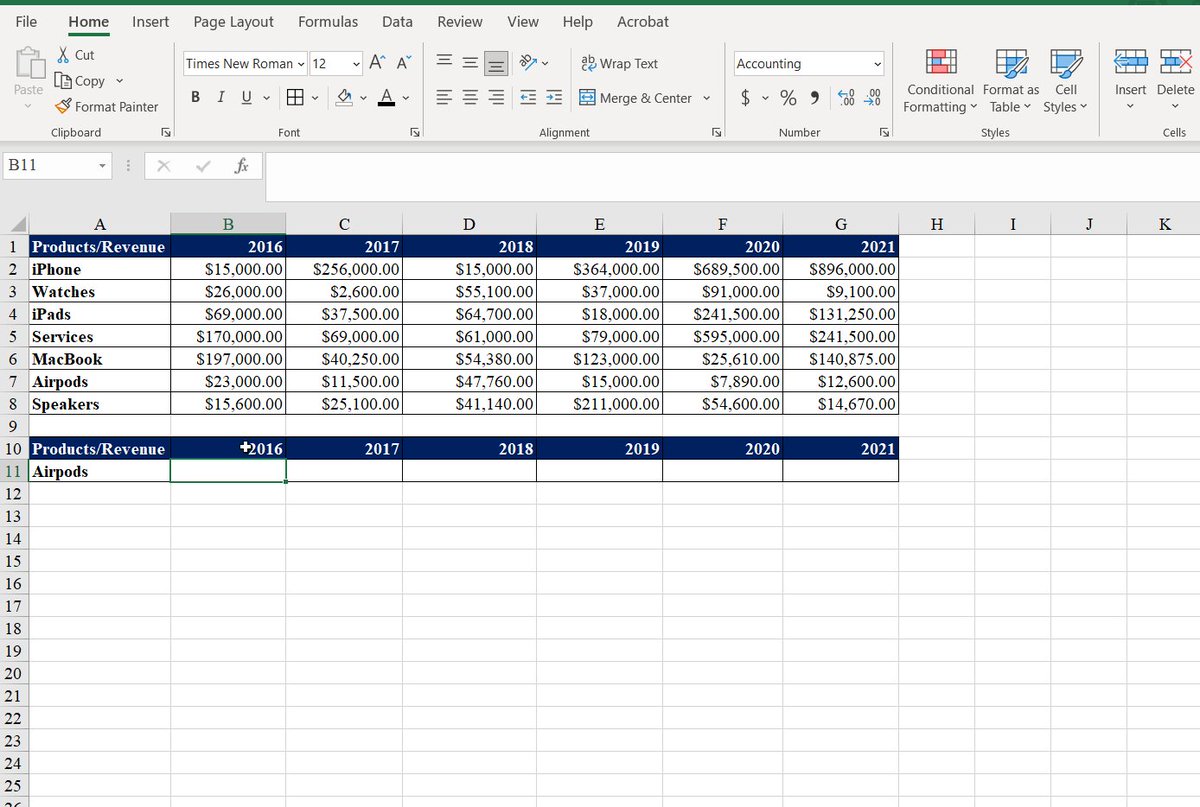
I'm looking for revenue of a given product for multiple years. Unlike VLOOKUP, adding a column won't break the formula.
The formula: =XLOOKUP(A11,A2:A8,B2:H8)
2.LAMBDA
Use a LAMBDA function to create custom, reusable functions and call them by a friendly name.
This is a powerful function to create your own calculations.
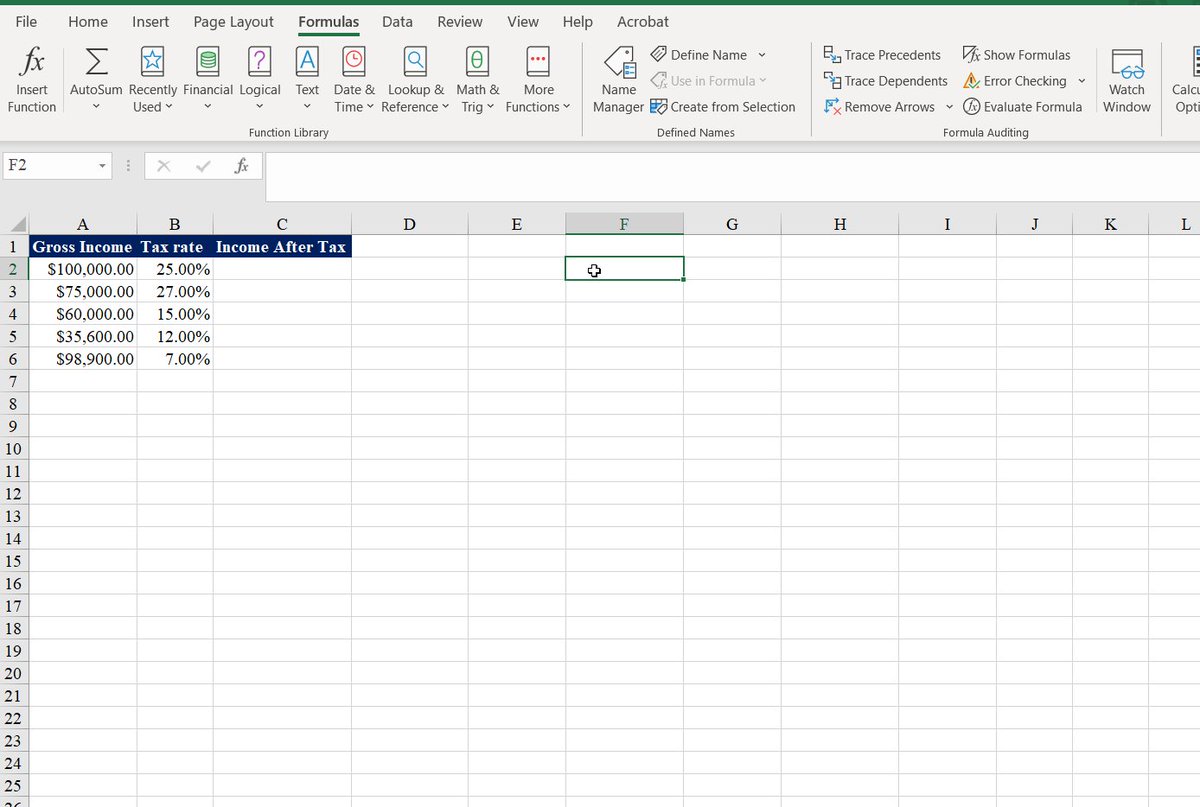
In our case, we wanted to calculate the income after deducting tax.
The formula: = LAMBDA(x,y,x*(1-y))
3. CONCATENATE
Use this function to join two or more text strings into one string.
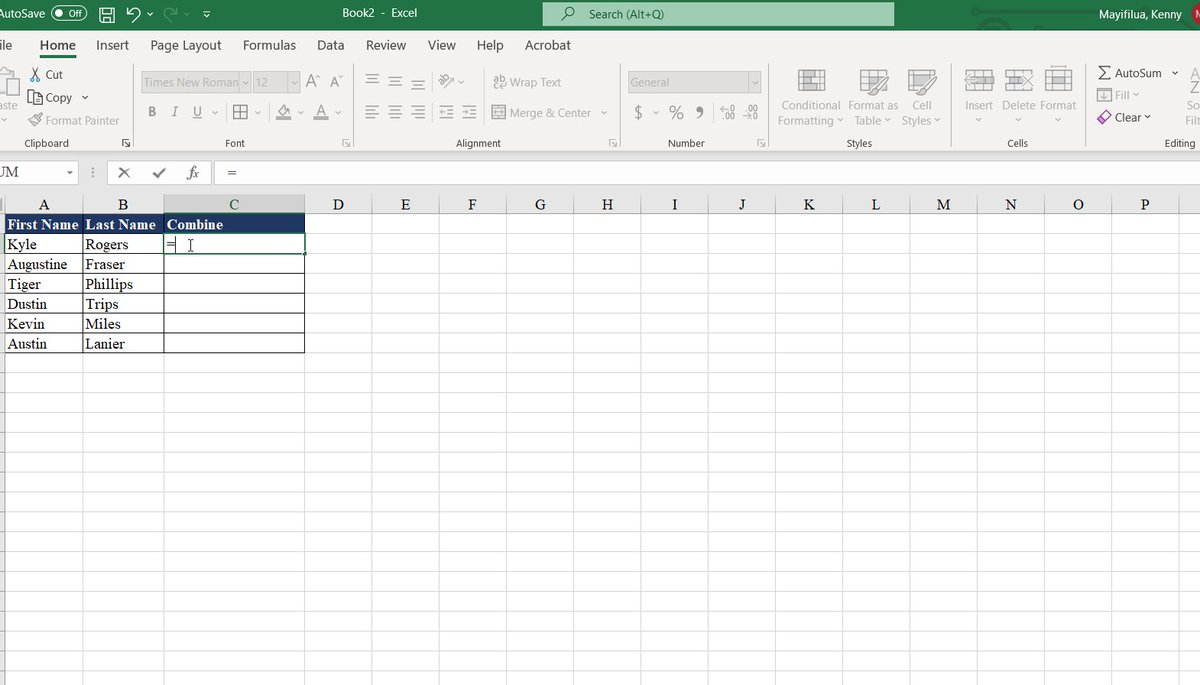
I'm trying to combine the first name and last name in one cell.
Don't forget the “ ” and the space in the middle if it to separate the two texts.
The formula: =CONCATENATE (A2,“ ”,B2)
4. COUNTIF
Use COUNTIF to count the number of cells that meet a criterion.
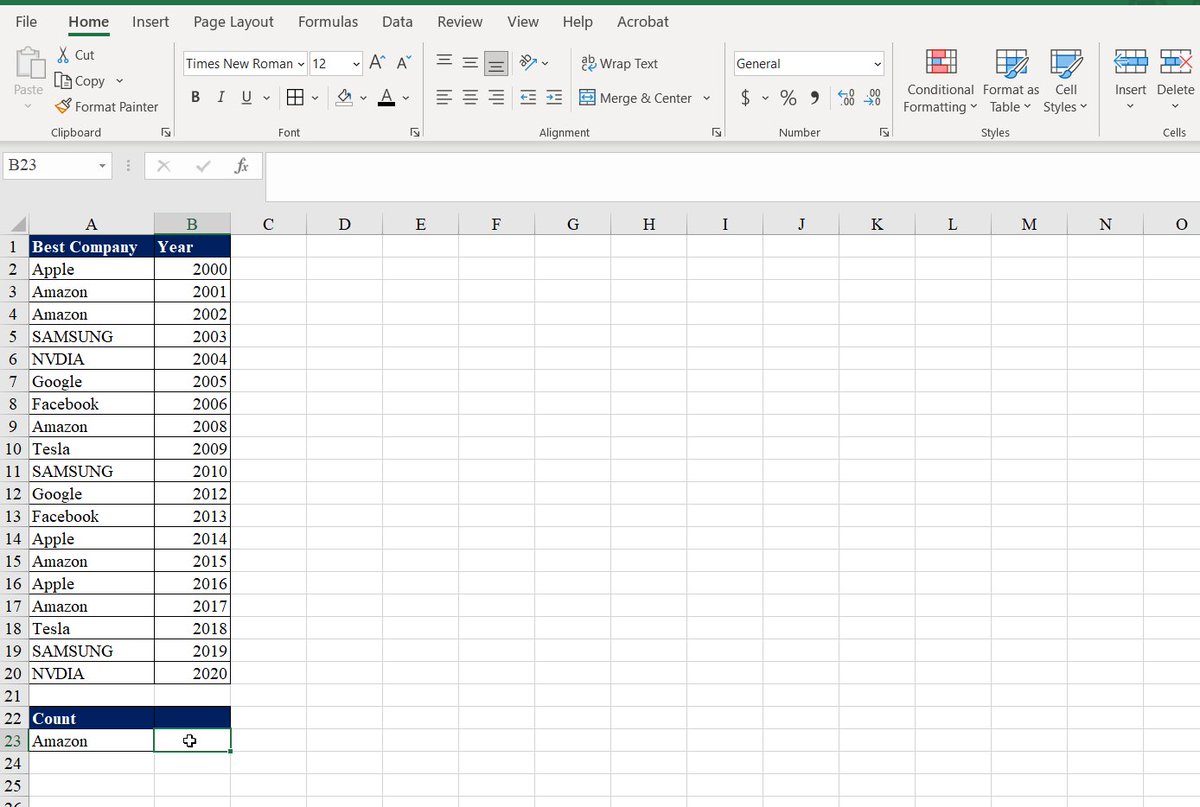
I'm counting the numbers of times these companies have been the best companies in different years.
The formula:=COUNTIF(A2:B22,A25)
5.FILTER
The FILTER function allows you to filter a range of data based on a defined criterion.
We filtered to return only people who made more than $50,000. After we sorted the yearly salary in descending order.
The formula =SORT(FILTER(A2:B11,B2:B11>E1),2,-1)
6. SORT
The SORT function sorts the contents of a range or array of data.
We first sorted our table by name, which is the first column.
Then, we sorted by date and income respectively by adding the 2 and 3.
The formula=SORT(A2:C11,3)
7.IF
Use the IF function to make logical comparisons.
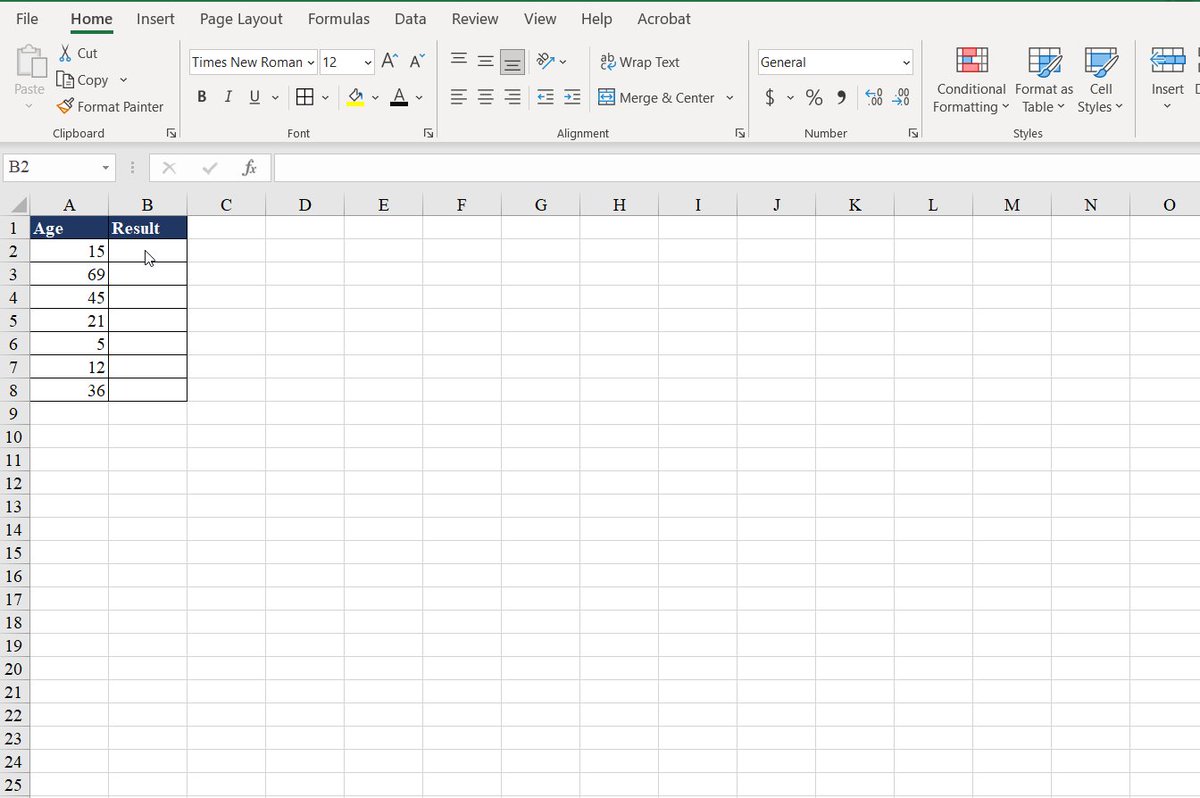
In our case, the logical comparison is to return the word adult if the age is higher than 18. If it is not, it will say child.
The formula=IF(A2<18,"Adult","Child")
8. SUMIF
Use the SUMIF function to sum the values in a range that meets the criteria that you specify.
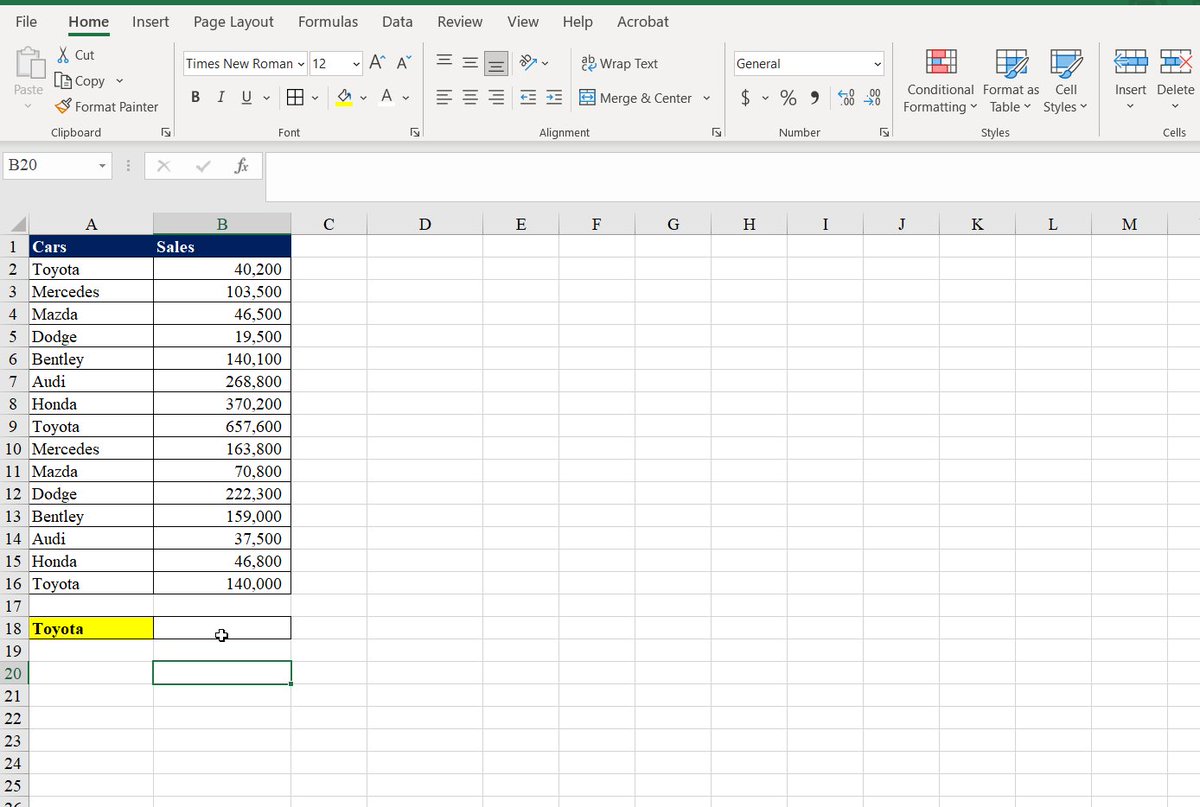
In this case, I'm trying to figure out the number of sales for a given car.
The formula: =SUMIF(A2:A16,A18,B2:B16)
9.UPPER, LOWER, PROPER
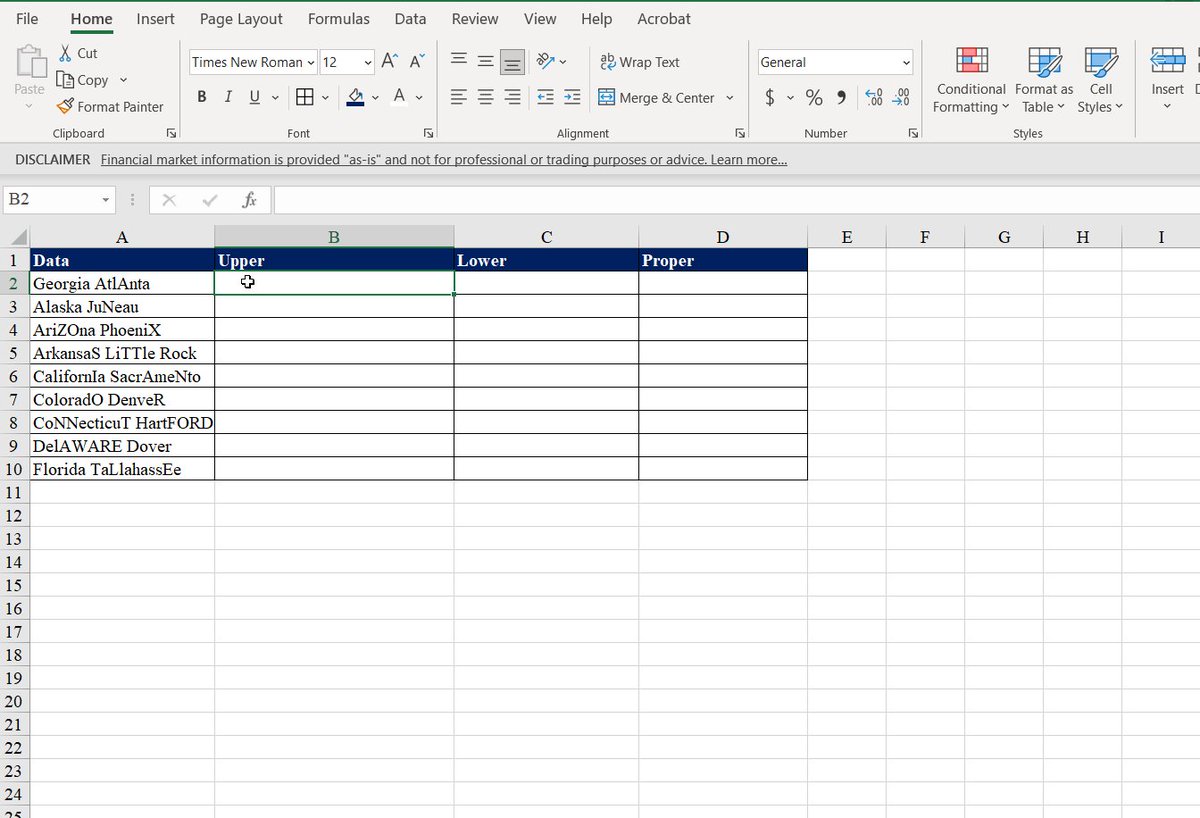
=UPPER Converts a text string to all uppercase
=LOWER Converts a text string to all lowercase
=PROPER Converts a text string to the proper case
For each of the formulas, we use the information from (A2:A10)
10.FLASH FILL
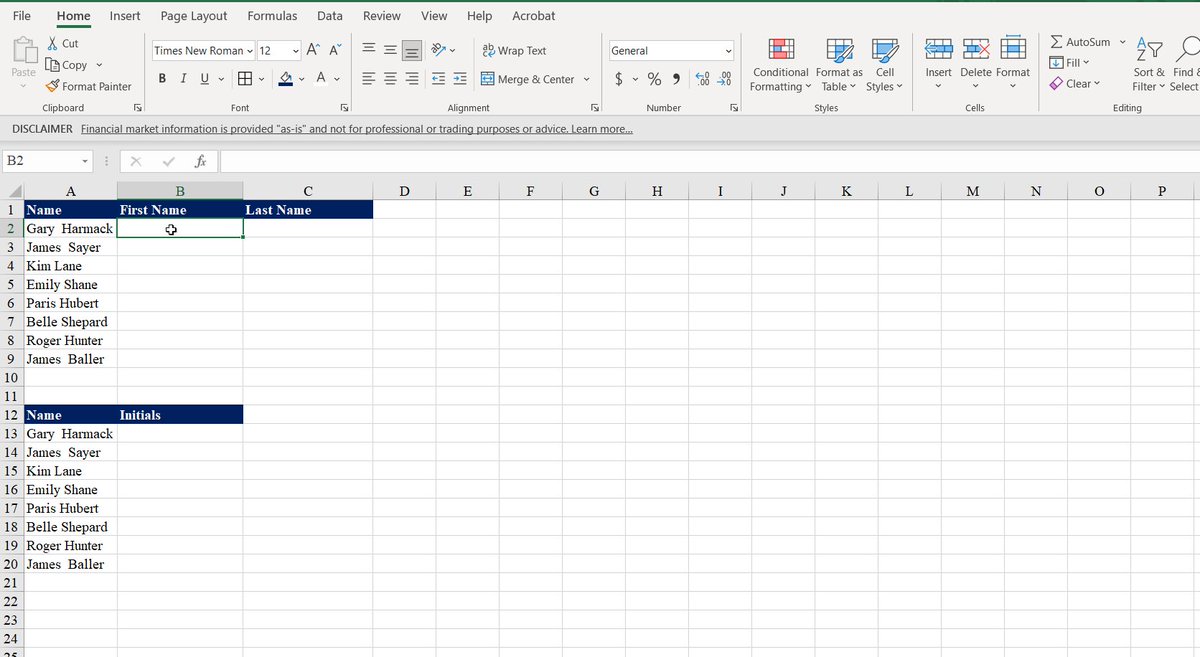
Flash Fill automatically fills your data when it senses a pattern.
We typed the first name, the last name, and the initials and excel recognized the pattern and reproduced the desired result.
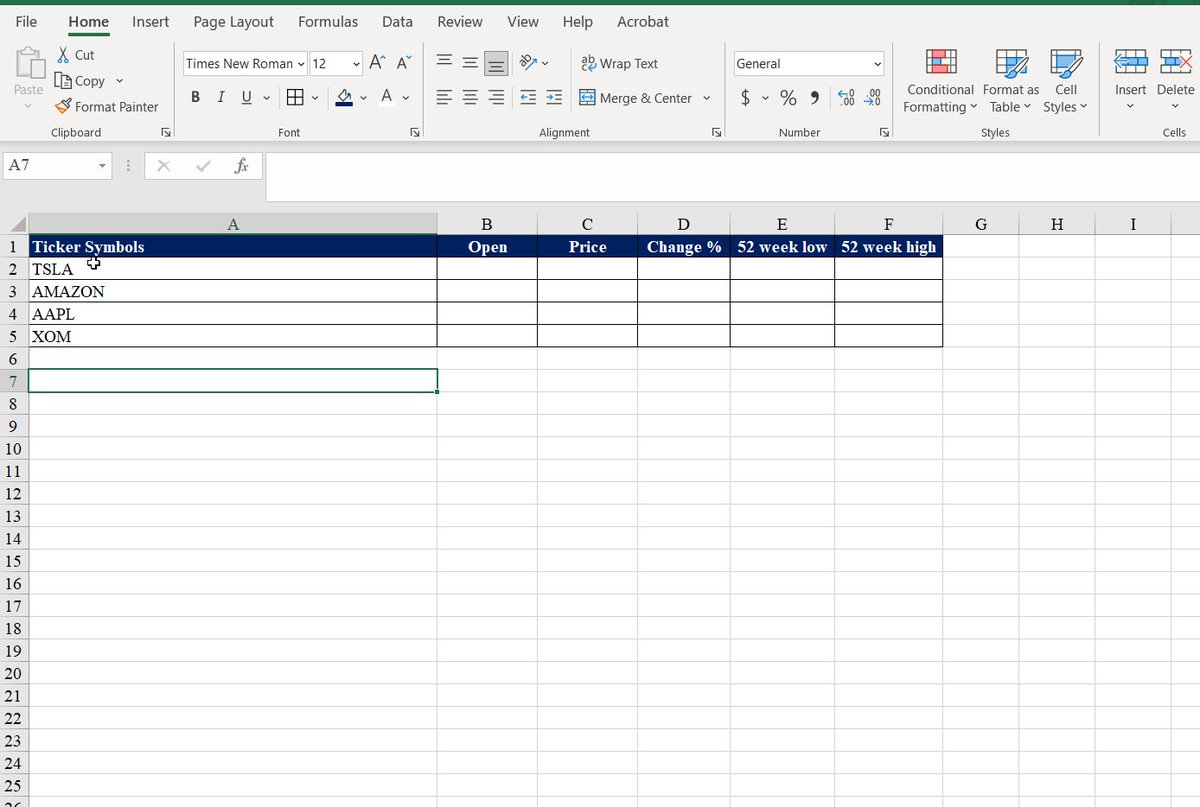
11. Convert to Stocks
Convert company names or ticker symbols to get current stock information.
This provides financial metrics for companies of your choice.
If you enjoyed this thread, please like, comment, and retweet the first tweet.
I write about:
- Personal Finance
- Investing
- Wealth
Follow me
@AccentInvesting to get more tips.
Subscribe and get a Free guide on 5 ETFs to hold for life:
https://t.co/Id5i5yGsNE